
Installing RescueTime on Windows and macOS
To track your computer activity, you'll need to download and install RescueTime on your desktop.
Logging in on the RescueTime website without installing the desktop app will not track your computer activity.
Download the Installer

Open the Installer File
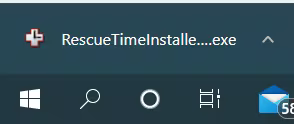
Look for RescueTimeInstaller_X.exe in the lower-left corner of your browser, or find it in your Downloads folder. Open it to begin.
Allow the App to Make Changes
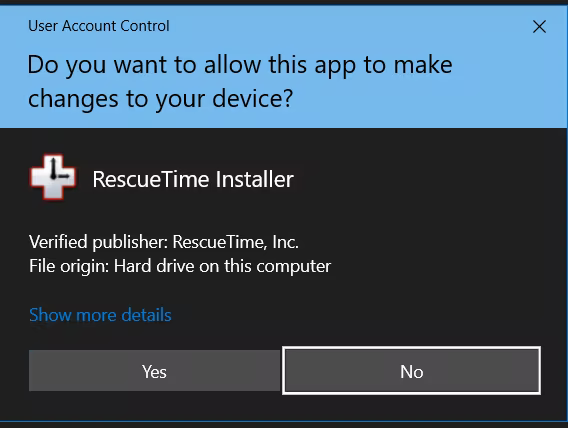
When Windows asks if you want to allow the app to make changes to your device, click Yes.
Choose Install Location
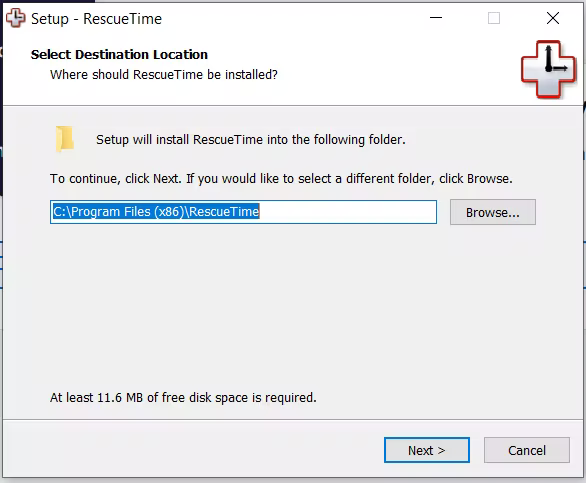
The setup window will ask where RescueTime should be installed. Click Browse to change the location, or Next to accept the default location.
Choose Shortcut Folder
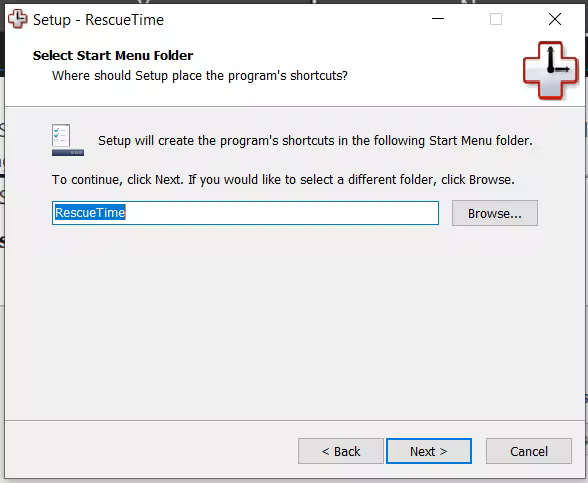
Choose where to place RescueTime's shortcut folder, then click Next.
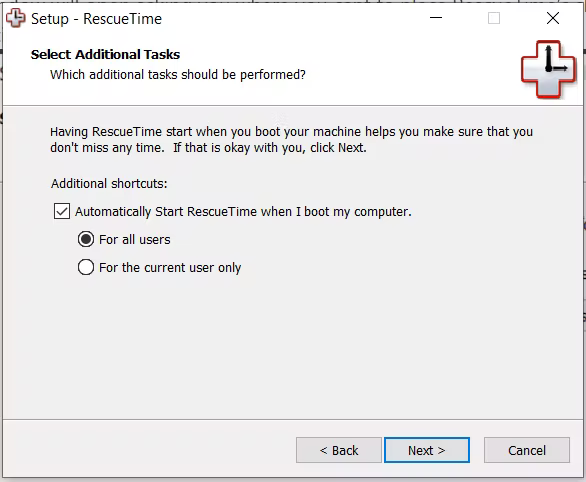
Set Automatic Start Preference
Choose whether RescueTime should start automatically when you turn on your computer. This can be changed at any time.
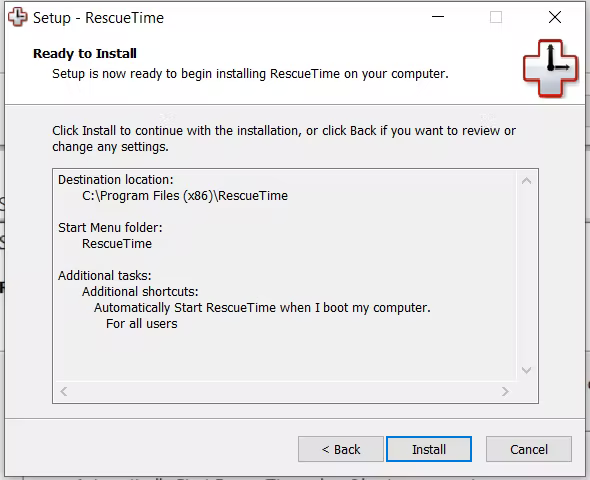
Install
Click Install to begin the installation.
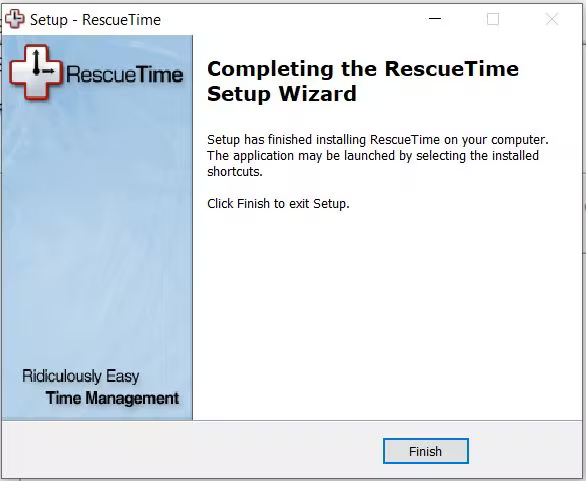
Finish
Click the Finish button to complete the installation.
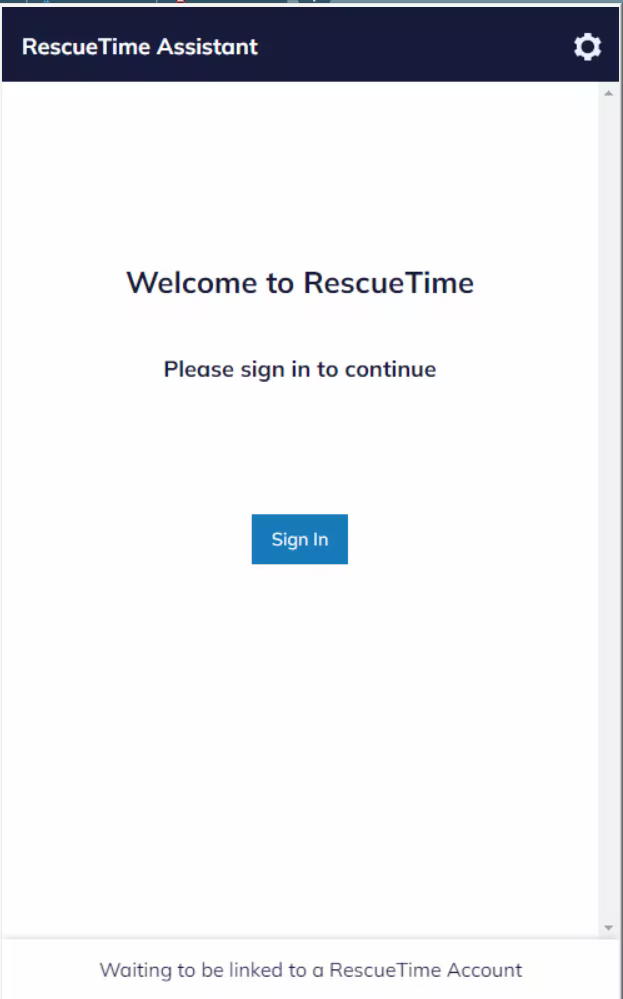
Sign In
The Assistant will open and prompt you to sign in. Click Sign In to be taken to the RescueTime website.
Activate the Assistant
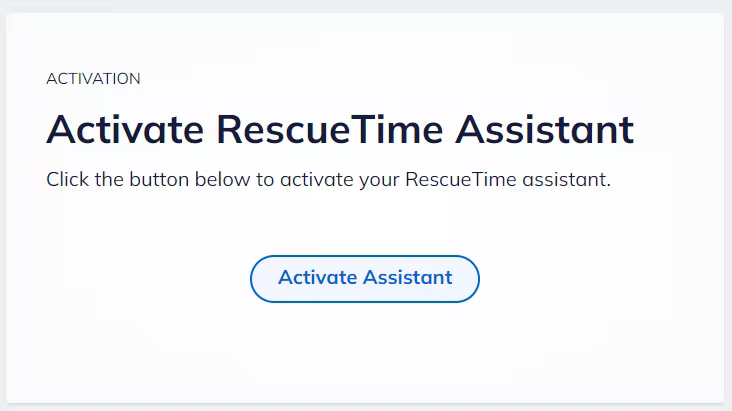
After signing in, click Activate Assistant. RescueTime will begin tracking your activity.
Download the Installer
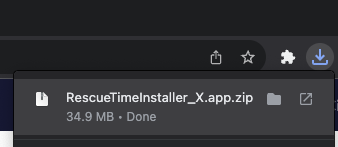
Download the RescueTime Assistant here. Look for RescueTimeInstaller_X.zip in your browser's downloads bar (top-right or bottom-left depending on your browser), or find it in your Downloads folder.

Unzip and Move to Applications
Double-click RescueTimeInstaller_X.zip to unzip it. Then drag RescueTime.app to your Applications folder.

Open from Applications
Go to your Applications folder and open the RescueTime app. When macOS shows a security prompt, click Open.

Sign In
The RescueTime Assistant will open and ask you to sign in. Click Sign In to be taken to the RescueTime website in your default browser.
Activate the Assistant
After signing in, click Activate Assistant.
Access from the Menu Bar
Once activated, you can open the Assistant by clicking the RescueTime icon in your menu bar.
