
Creating Goals
Goals let you set daily time targets for any activity and track your progress over time. They show up in your daily and weekly summaries, your Dashboard, and optionally in the Assistant as a featured goal.
Go to Goals & Automations in the top navigation to create and manage your goals. Free accounts are limited to one goal. Solo Focus and Solo+ accounts have unlimited goals.
Productivity goals
Click + New Goal and select the For Focus tab. Productivity goals track time spent on an activity, category, productivity level, or total logged time against a daily target.
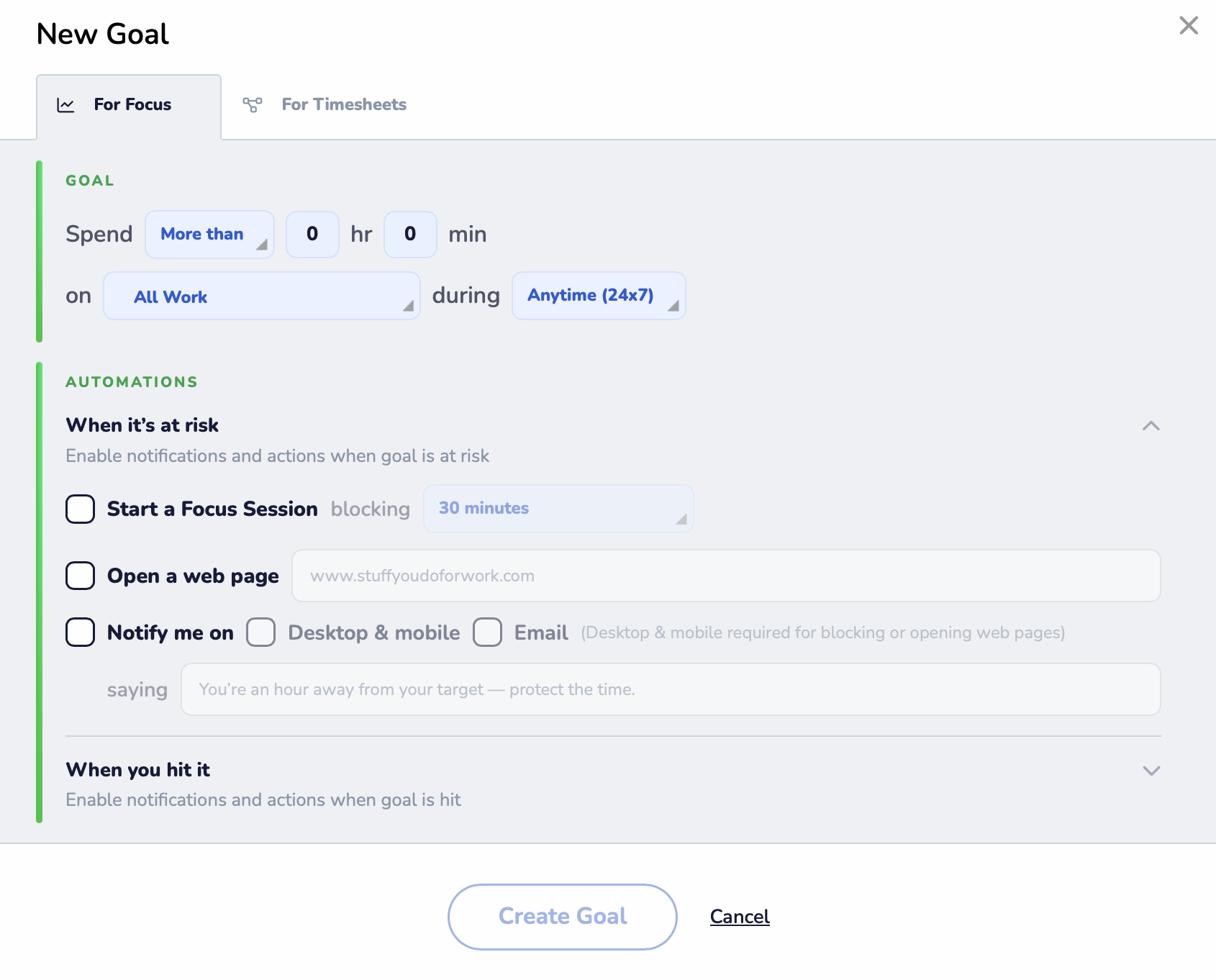
Direction
Choose More than or Less than and enter a time in hours and minutes. More than goals are for building up time on something valuable: more than 3 hours on Focus Work. Less than goals are for limiting something: less than 1 hour on social media.
Activity
Select what to track from the on dropdown. You can target a productivity level (Focus Work, Other Work, Neutral, Personal/Distracting), any activity category or sub-category, a specific app or website, or total logged time.
Timeframe
Set when the goal is active using the during dropdown. Options include Anytime (24x7), Work Hours, and any custom Time Filter you've created. This scopes the goal to only the hours and days that matter. See Time filters below.
Automations
Below the goal itself, the Automations section lets you make the goal act on its own. These are optional; the goal is tracked either way. See Automations on a goal below.
💡 You can also create a goal directly from an activity's report. Click the goal button on any activity report to open the New Goal form pre-filled with that activity.
Automations on a goal
A goal on its own is passive: it tracks your time, and you check it later. An automation attached to that goal makes something happen in the moment. Each goal has two triggers you can turn on independently, both in the Automations section of the goal form.
When it's at risk
Fires while you still have time to take action, when your pace suggests you're going to miss the target. Most useful on More than goals.
When you hit it
Fires the moment you reach the target. Most useful on Less than goals, where reaching the number is the point at which you want to stop.
Expanding either trigger gives you the same three actions, and you can use any combination of them:
- Start a Focus Session: blocks distracting sites and apps for the duration you pick
- Open a web page: loads a URL you specify
- Notify me on: desktop & mobile, email, or both, with an optional custom message
Desktop & mobile notifications are required to block distractions or open a web page. Email notifications alone can't perform those actions.
Project goals Solo+
Click + New Goal and select the For Timesheets tab. Project goals track reviewed, logged time against a specific Timesheets project or client.
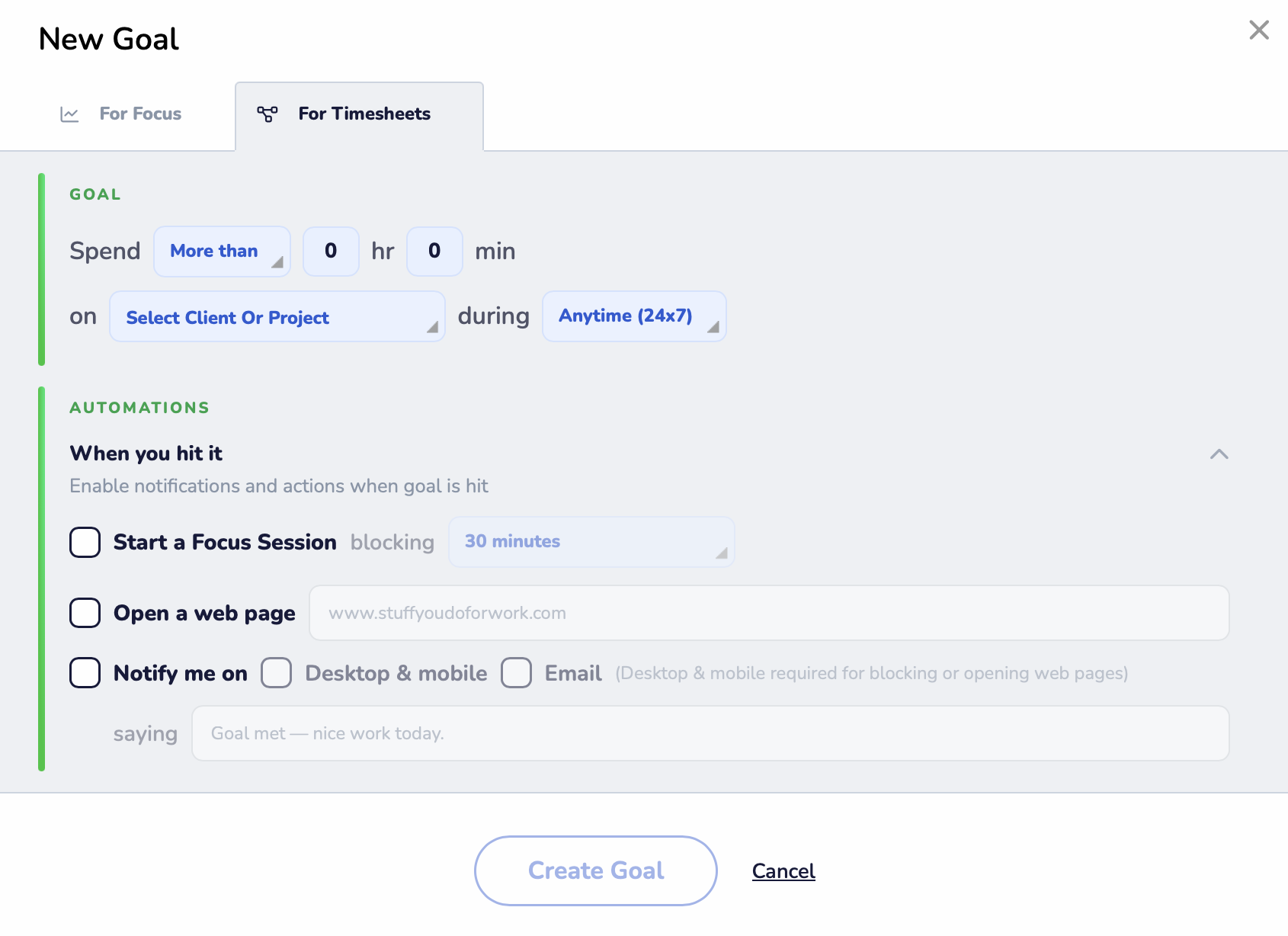
Choose your project or client from the dropdown, set a daily target, and select a timeframe. The goal tracks time that has been reviewed on your Timesheets timeline. Unreviewed suggestions don't count. Timesheets goals can include automations that trigger when the goal is reached, but not automations for an at-risk goal.
Project goals use Timesheets data only. If the goal looks empty, check that you've reviewed your timeline for that day.
Time filters
Time filters let you scope a goal (or automation) to a custom window of time: specific days of the week, specific hours, or a combination of both. They appear in the during dropdown when creating or editing a goal, alongside the default Anytime and Work Hours options.
Manage your time filters at Account Settings → Work Schedule → Time Filters.

Creating a time filter
Click Add Time Filter. Give the filter a name, select which days it applies to, and set whether each day is all day or specific hours using the checkbox under each day. Click Manage Breaks to exclude specific time windows within those hours. Click Create to save it.

Once created, the filter appears by name in the during dropdown on any goal or automation. You can edit or delete filters from the Time Filters settings page at any time.
💡 Time filters are reusable. Create a "Mornings" filter once and apply it to as many goals and automations as you need. Common examples: weekends only, morning hours (8 am to 12 pm), or specific days you want to track separately from your general work schedule.
Goal cards and actions
Each goal on the Goals & Automations page shows today's progress: the current time logged toward the goal and whether you've hit it. There is no way to disable or pause a goal; if you no longer need it, delete it. The same form used to create a goal is used to edit it.
The icons on the right side of each goal card:
- Goal report icon (bar chart): Opens the individual goal report showing your progress history for that goal
- Timer icon: Opens a real-time timer widget that tracks your progress toward the goal live, updating on screen as you work
- Edit icon (pencil): Opens the goal form to change any setting
- Delete icon (trash): Permanently removes the goal
- Star icon: Sets this goal as the featured goal in the Assistant (see below)
Starring a goal for the Assistant
The Assistant displays your featured goal. By default, this is your Focus Work Goal. To replace it with any other goal, click the star icon on that goal's card. Only one goal can be starred at a time; starring a new one automatically un-stars the previous one.

When a goal is starred, the label Set as daily goal in RescueTime Assistant appears above the card. You can also link the Assistant to a goal from Account Settings → Work Schedule → Daily Focus Goal: selecting "from productivity goals" there and picking a goal is equivalent to starring it here.
The goal report
Each goal has its own individual report. Click the bar chart icon on any goal card to open it. The report is scoped to that goal. It shows your progress for the day you're viewing, including how much time you logged and what percentage of your target that represents.

The summary card on the left shows your total logged time for the selected day and the percentage of your target reached. The bar chart shows how that time was distributed across the day by hour. This is useful for seeing not just whether you hit your goal, but when during the day you made progress.
Use the all time / work hours toggle at the bottom to switch between viewing all tracked time and work-hours-only time. Navigate between days using the date picker in the top right.
Switch the date picker to Week, Month, or Year view to see your progress trend over longer periods. This is where the report becomes most useful for identifying patterns in when and how often you hit your goals.
*