
Navigating the RescueTime Website
This article gives you a quick tour of the RescueTime web interface, including where everything lives and what each section does. You can access these pages after signing in on the website.
The top navigation bar
The dark bar across the top of every page is your main way to move around RescueTime. It contains five sections: Focus, Timesheets, Activities, Goals & Automations, and Offline Activity, plus your account menu on the right under your username.

Focus → Dashboard
The Dashboard is your daily (weekly, monthly, or yearly) summary. It shows your total logged time, your Productivity Pulse score, and a breakdown of time by category. Use the all time and work hours toggle to switch between views, and the Spotlight on today section for a closer look at work hours vs. non-work hours, top activities, daily patterns, and trends.
The Dashboard defaults to today, but you can navigate to any previous day using the date picker in the top right. Click details next to your total time to drill into the underlying activity data.
Access the Dashboard from Focus → Dashboard in the top nav.

Focus → Personal Reports
Personal Reports are where you go to dig deeper into your data. Hover over Focus and then Personal Reports to see the submenu:
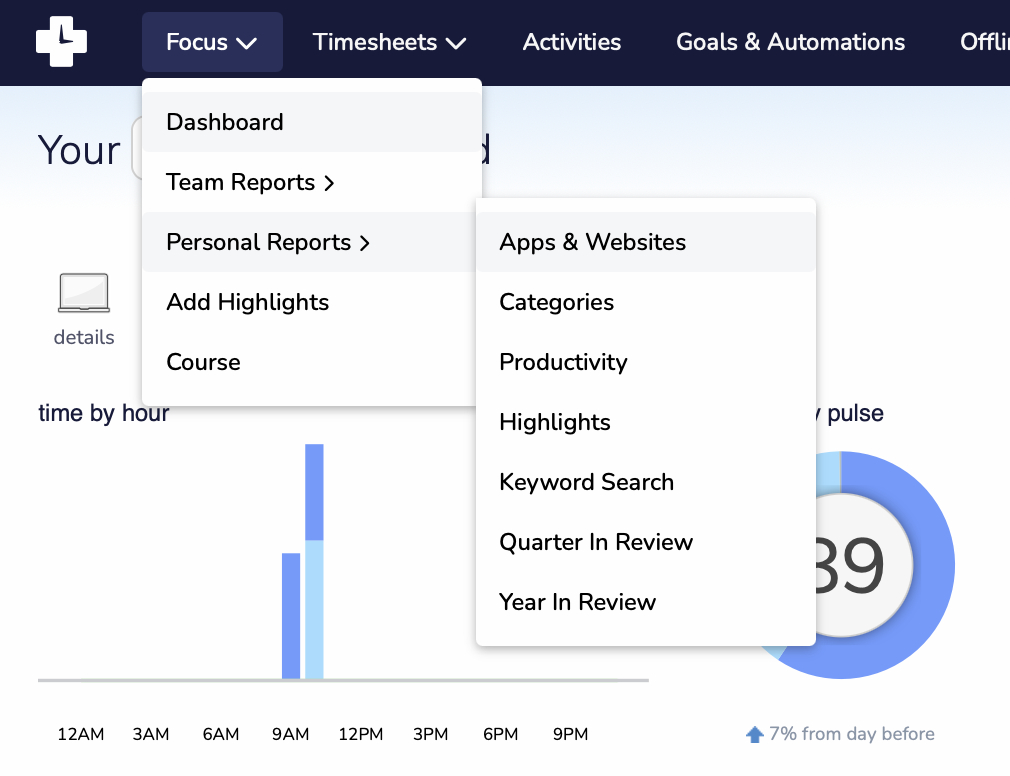
- Apps & Websites: A ranked list of every app and site you've used, with time totals and productivity levels
- Categories: Your time grouped by category (Communication & Scheduling, Design & Composition, etc.)
- Productivity: Your time grouped by productivity level
- Highlights: A place to log notable moments and milestones
- Keyword Search: Search across your report history for specific keywords
- Quarter In Review / Year In Review: Summarized views of your long-term patterns
💡 Most reports support filtering by date range and toggling between all time and work hours. See Using the date picker below for how to set your date range.
Activities
The Activities page is where you categorize your apps and websites and adjust their productivity levels. Every app and site RescueTime tracks is assigned to a category and a productivity level (Focus Work, Other Work, Neutral, Personal, or Distracting). These assignments are what power your Productivity Pulse score and reports.

From this page you can:
- Move an activity between productivity levels using the arrows on either side of its card, or hover and click More Details to change its category and see full details
- Use Sort uncategorized to quickly work through any apps or sites that haven't been assigned yet
- Use Manage categories to adjust the default productivity level for entire categories
💡 Getting your categories and productivity levels right is the single most impactful thing you can do to make your RescueTime data accurate.
Goals & Automations
Goals & Automations is where you set targets for your time and get notified when you hit or miss them. You can create goals based on any activity, category, or productivity level, scoped to work hours, non-work hours, or all day. When a goal is reached, you'll see an alert in the Assistant and, if enabled, an email notification.
Offline Activity
The Offline Activity page lets you log time you spent away from your computer: phone calls, in-person meetings, focused thinking time, and so on. Entries you make here appear in your reports alongside your tracked computer time.
Timesheets
If you've chosen the Solo+ plan, you have access to Timesheets. You can reach your timeline, projects, reports, and preferences directly from the Timesheets menu in the top navigation bar.
Account settings
Use the dropdown under your username in the top right corner to open the account menu.

- Account Settings: Manage your work profile, schedule, privacy settings, billing, and connected integrations
- Download: Download the RescueTime desktop app for macOS or Windows
- Community: Link to the RescueTime community forum
- Help: Opens the form to contact customer support
- Sign Out: Sign out of your account
Using the date picker
Most pages have a date picker in the top right corner. Click it to change the time period you're viewing.

- Day / Week / Month / Year: Jump to a standard period; use the arrows flanking the date to step forward or back one period at a time
- Recent: Shows the most recent activity
- All Time / Work Hours: Toggle between all time and your work hours. Switching to Work Hours limits the data shown to activity that occurred during your defined work schedule.
💡 The date picker selection persists as you navigate between reports, so you can set a date range once and explore different views without resetting it each time.