
RescueTime for Android: In-depth Guide
This is the complete guide to RescueTime for Android: every feature, every permission, settings and troubleshooting.
The app tracks your phone or tablet time automatically, blocks distracting apps during Focus Sessions, and gives you insights into your productivity on mobile and desktop combined.
Install and Sign In/Sign up
Get the app and connect your account
Install RescueTime from Google Play: RescueTime for Android
Open it and either create an account on the spot (Enter your name, email, and password, then Create account, or continue with a Google or Apple account) or tap Sign in if you already use RescueTime on your computer.
Signing in with an existing account links your phone to your computer data. All of your devices will send data to your Dashboard on mobile or desktop.
💡 Confirm your email. If you create an account on your phone, the Settings tab shows an Email confirmation needed notice until you click the link that RescueTime emails you. Confirm it so you can recover your password and receive emails regarding your account.
Permissions
Three permissions, two jobs
RescueTime asks for three Android permissions. One is for tracking. The other two are needed for app blocking during Focus Sessions.
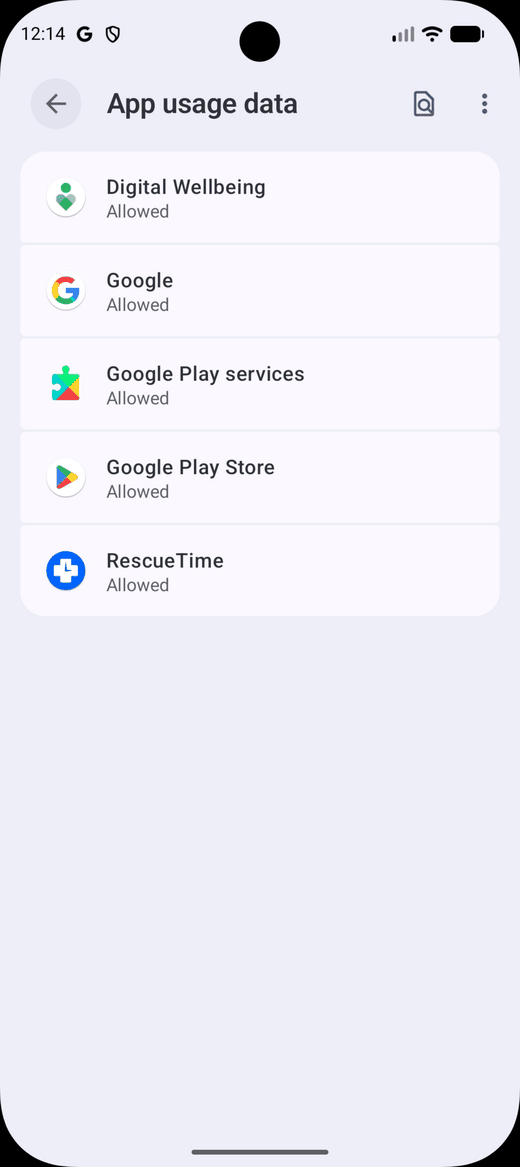
App usage data · for tracking
Lets RescueTime see which apps you open and for how long. This is what populates your reports. Without it, the app can't track your time.
Display Over Other Apps · for blocking
Lets RescueTime show the block screen on top of a distracting app during a Focus Session.
App Monitoring (Accessibility) · for blocking
Lets RescueTime see the moment a distracting app comes to the foreground, so it can block the app. Android routes app-launch detection through its accessibility system, which is why this is found under Accessibility settings.
Granting permissions
In the app, go to Settings → Track Apps Permission. Android opens its App usage data screen. Find RescueTime and set it to Allowed.
Granting blocking permissions
Go to Settings → Configure App Blocking. Before permissions are granted, the top of the screen shows Mobile App Blocking greyed out with "Permissions required," and a warning icon next to the permission rows.

Tap Display Over Other Apps and enable it in Android's settings. Then tap App Monitoring (Accessibility), which opens Android's Accessibility list. Find RescueTime under Downloaded apps.

Tap RescueTime, then turn on Use RescueTime.

Android then shows a confirmation dialog asking whether to allow full control of your device.

About "full control": Android shows this dialog for every app that uses an accessibility service, in identical language. RescueTime uses it for one reason: detecting when a blocked app opens so it can show the block screen. It does not read, store, or transmit your screen content. If you would rather not grant it, RescueTime still tracks your time. You will not have access to app blocking.
Dashboard
Your day at a glance
The Dashboard is the first tab and the fastest way to see where your time went. It shows your goals progress, Productivity Pulse, Focus Streak, Focus Pattern, time logged, pickups, and distractions. Use the arrows at the top to move between days.
Goals
Your active goals appear as swipeable cards at the top of the Dashboard, showing current progress toward each one.

Focus Streak
Running Focus Sessions daily builds a streak. Each day you complete a Focus Session earns a filled circle on the weekly streak tracker. Your current streak count is shown at the top of the card.

The Pattern of Your Focus
A calendar heatmap showing your focus depth over the past two months. Darker blue means more Focus Work that day. A note at the bottom calls out which days of the week you tend to focus best.

Time Logged
Your total tracked time for the day broken down by productivity level: Focus Work, Other Work, Distracting, and Neutral. A weekly bar chart shows the current week, and a second chart shows time of day. Tap See activity to drill into the full app list.

Mobile Pickups
How many times you picked up your phone on the selected day, with a weekly chart and a time-of-day chart showing when pickups happened. Tap See apps to see which apps triggered the most pickups.

Distractions
Total time in distracting apps and the number of shifts into distraction. Shifts tell you not just how long you were distracted, but how many separate times you switched to a distracting app. Charts show the pattern across the week and by time of day. Tap See activity to see which apps are pulling you away.

💡 For trends, not just today. The Dashboard shows either a daily snapshot or a broader view. Use the date picker to see week-over-week patterns and trends.
Manually add activity
Log time away from your screen
The edit button in the Timeline tab lets you add things like in-person meetings, phone calls, and brainstorming time, so your reports reflect the entire workday. Tap the blue edit button to open an entry form:

How to add an entry
Pick the date, set a start and end time, choose an activity (choose a default option or tap Manage to create your own), add an optional description, then tap Add Activity.
Focus Sessions and Timers
The center RescueTime button
The RescueTime button in the middle of the navigation bar opens a modal with two tabs: Focus and Timer.
Focus Sessions
Enter what you are focusing on, choose a duration (15, 25, 30, or 60 minutes, or set a custom length), then press play. For the length of the session, apps you have marked as distractions are blocked. When you open one, RescueTime covers it with a block screen instead.
Timers
The Timer tab counts time toward an activity without blocking anything. Save timers for tasks you track often so you can begin quickly, with the activity name and category already set.
Blocking needs permissions. A Focus Session can only block apps if Display Over Other Apps and App Monitoring (Accessibility) are both granted. See Permissions above.
App Blocking in Detail
Choose what gets blocked
Go to Settings → Configure App Blocking. Turn on Mobile App Blocking at the top, then scroll to Choose Distractions. You can block whole categories (Maps & Navigation, Music & Audio, Photography, Productivity, Social, Video Players, and more) or expand any category to pick individual apps. Each category row shows how many of its apps are blocked.

What you see when you open a blocked app
Open a blocked app during a session, and RescueTime replaces it with a full-screen message: "App blocked during focus session."

Timeline Solo+
See your Timesheets Timeline
The Timeline tab shows your Timesheets Timeline: a visual, chronological view of your project time across the day.
View-only on mobile. The Timesheets Timeline on Android is currently for viewing only. To edit project time or review and log your timesheet, use the RescueTime website. Timesheets is only available with the Solo+ plan.
Settings
Your settings options
The Settings tab holds your account, subscription, privacy, appearance, permissions, and work settings.

Account and Subscription
View and update your account details, sign out, and check your current plan and billing.
Data & Privacy
Review your privacy settings and control how your data is collected and used. RescueTime logs which apps you use and for how long, not screenshots, messages, or keystrokes.
Appearance
Switch the theme between light and dark modes and change the app language.
Permissions & Preferences
Track App Activity is necessary for logging phone time. Track Apps Permission and Configure App Blocking open the permission flows above. WiFi Only Uploads holds data until you are on WiFi, which helps on limited data plans.
Work Settings
Your work profile, work schedule, and focus settings are kept in sync with the RescueTime website so your phone and computer agree on when you are working.
Goals
Set goals from your phone
You can create and track goals right in the app. On the Dashboard, tap + next to Goals to open New Daily Goal.

How a goal is built
Choose For Productivity (or For Project if you use Timesheets Solo+), then More than or Less than a set number of hours and minutes. Pick what to focus on (for example, Focus Work), when it applies (such as 24×7), and whether to be notified on your devices, by email, or both. Optionally add a note on why the goal matters, then tap Add Goal.
💡 Android goals cover both mobile and desktop. Unlike iOS, Android goals apply to your combined activity across all devices. The goal progress you see in the app is the same as what you see on the RescueTime website.
Reports
Deeper dives into your data
Tapping See activity or See apps from any Dashboard card opens a full activity breakdown. The activity list shows every app tracked, sorted by time, with the app's productivity category and a bar showing its proportion of your total usage.
Tap the menu icon next to any app to change its category. Category changes apply across your entire account, including your desktop reports on the website.
Troubleshooting
My phone time is not showing up
Check three things: Track App Activity is on in Settings, App usage data is set to Allowed for RescueTime in Android settings, and that you are signed into the right account. If WiFi Only Uploads is on, data waits until you reconnect to WiFi.
App blocking is not working during Focus Sessions
Open Settings → Configure App Blocking. If you see a warning icon, one of the two blocking permissions is missing. Confirm both Display Over Other Apps and App Monitoring (Accessibility) are granted, and that Mobile App Blocking is enabled. Also, make sure the correct apps are listed under Choose Distractions.
The mobile app is not sending data to desktop
Some Android battery optimizers shut down background apps. If tracking stops working after working previously, disable battery optimization in your phone's settings, then re-enable Use RescueTime under Accessibility.
I have an "Email confirmation needed" notice
Open the confirmation email RescueTime sent when you created the account and click the link. If you cannot find it, request a new one from your account settings and check your spam folder.
💡 Still stuck? Reach the RescueTime team at support@rescuetime.com.